You can login to a remote Linux server without entering password in 3
simple steps using ssky-keygen and ssh-copy-id as explained in this
article. ssh-keygen creates the public and private keys. ssh-copy-id
copies the local-host’s public key to the remote-host’s authorized_keys
file. ssh-copy-id also assigns proper permission to the remote-host’s
home, ~/.ssh, and ~/.ssh/authorized_keys.
This article also explains 3 minor annoyances of using ssh-copy-id and how to use ssh-copy-id along with ssh-agent.
Step 1: Create public and private keys using ssh-key-gen on local-host
jsmith@local-host$ [Note: You are on local-host here]

jsmith@local-host$ ssh-keygen
Generating public/private rsa key pair.
Enter file in which to save the key (/home/jsmith/.ssh/id_rsa):[Enter key]
Enter passphrase (empty for no passphrase): [Press enter key]
Enter same passphrase again: [Pess enter key]
Your identification has been saved in /home/jsmith/.ssh/id_rsa.
Your public key has been saved in /home/jsmith/.ssh/id_rsa.pub.
The key fingerprint is:
33:b3:fe:af:95:95:18:11:31:d5:de:96:2f:f2:35:f9 jsmith@local-host
Step 2: Copy the public key to remote-host using ssh-copy-id
jsmith@local-host$ ssh-copy-id -i ~/.ssh/id_rsa.pub remote-host
jsmith@remote-host's password:
Now try logging into the machine, with "ssh 'remote-host'", and check in:

.ssh/authorized_keys

to make sure we haven't added extra keys that you weren't expecting.
Note: ssh-copy-id appends the keys to the remote-host’s .ssh/authorized_key.
Step 3: Login to remote-host without entering the password
jsmith@local-host$ ssh remote-host
Last login: Sun Nov 16 17:22:33 2008 from 192.168.1.2
[Note: SSH did not ask for password.]

jsmith@remote-host$ [Note: You are on remote-host here]
The above 3 simple steps should get the job done in most cases.
We also discussed earlier in detail about performing SSH and SCP from openSSH to openSSH without entering password.
If you are using SSH2, we discussed earlier about performing SSH and SCP without password from SSH2 to SSH2 , from OpenSSH to SSH2 and from SSH2 to OpenSSH.
Using ssh-copy-id along with the ssh-add/ssh-agent
When no value is passed for the option -i and If ~/.ssh/identity.pub is not available, ssh-copy-id will display the following error message.
jsmith@local-host$ ssh-copy-id -i remote-host
/usr/bin/ssh-copy-id: ERROR: No identities found
If you have loaded keys to the ssh-agent using the ssh-add, then ssh-copy-id will get the keys from the ssh-agent to copy to the remote-host. i.e, it copies the keys provided by ssh-add -L command to the remote-host, when you don’t pass option -i to the ssh-copy-id.
jsmith@local-host$ ssh-agent $SHELL

jsmith@local-host$ ssh-add -L
The agent has no identities.

jsmith@local-host$ ssh-add
Identity added: /home/jsmith/.ssh/id_rsa (/home/jsmith/.ssh/id_rsa)

jsmith@local-host$ ssh-add -L
ssh-rsa AAAAB3NzaC1yc2EAAAABIwAAAQEAsJIEILxftj8aSxMa3d8t6JvM79DyBV
aHrtPhTYpq7kIEMUNzApnyxsHpH1tQ/Ow== /home/jsmith/.ssh/id_rsa

jsmith@local-host$ ssh-copy-id -i remote-host
jsmith@remote-host's password:
Now try logging into the machine, with "ssh 'remote-host'", and check in:

.ssh/authorized_keys

to make sure we haven't added extra keys that you weren't expecting.
[Note: This has added the key displayed by ssh-add -L]
Three Minor Annoyances of ssh-copy-id
Following are few minor annoyances of the ssh-copy-id.
Default public key: ssh-copy-id uses ~/.ssh/identity.pub as the default public key file (i.e when no value is passed to option -i).
Instead, I wish it uses id_dsa.pub, or id_rsa.pub, or identity.pub as
default keys. i.e If any one of them exist, it should copy that to the
remote-host. If two or three of them exist, it should copy identity.pub
as default.
The agent has no identities: When the ssh-agent is running and the ssh-add -L
returns “The agent has no identities” (i.e no keys are added to the
ssh-agent), the ssh-copy-id will still copy the message “The agent has
no identities” to the remote-host’s authorized_keys entry.
Duplicate entry in authorized_keys: I wish
ssh-copy-id validates duplicate entry on the remote-host’s
authorized_keys. If you execute ssh-copy-id multiple times on the
local-host, it will keep appending the same key on the remote-host’s
authorized_keys file without checking for duplicates. Even with
duplicate entries everything works as expected. But, I would like to
have my authorized_keys file clutter free.
Windows' built-in command line programs aren't that great on their own.
To make them better, we like to use third-party terminal programs, our
favorite being the customizable and free Console.
Provides
a fully-functional command line interface (CLI) that can run any
existing shell on Windows—like PowerShell, Cygwin, or even PuTTY
Open multiple tabs using any shell you want
Text editor-like text selection
Multiple window styles
Configurable fonts, colors and transparency
Lots of customizable hotkeys for opening new tabs, switching between tabs, and scrolling
Where It Excels
Console
is simple and easy to use while at the same time being much more
configurable than any single-shelled program, while holding the ability
to run any of those shells in a new tab—whether it be the UNIX-like Cygwin, Windows' very useful PowerShell, SSH king PuTTY,
or the standard Windows Command Prompt. You can configure what the
window looks like, open multiple tabs, and even run a number of
different shells at once in the same window. It also has quite a few
options for tweaking the behavior of the app, like how it selects text,
which hotkeys and mouse buttons do what, and so on. If you ever do any
work in a terminal on Windows, this program will make your life a little
bit easier.
Where It Falls Short
If you're a very heavy
or very advanced terminal user, you may want something even more
powerful than Console. Console isn't the most feature-filled
terminal on the block, but that's a good thing—most other terminal
programs are way more powerful, cluttered, and expensive than most users
need. So, if you're looking for something with built-in search or line
numbers, you may want to check out the competition section below.
The Competition
The competition for apps like this is pretty thin on Windows. If you don't like Console, you'll probably want to check out PowerCmd
as your next option. It's a bit pricier at $30, but it contains a few
extra features like the ability to search your consoles, view multiple
sessions in one big window, line numbering, and add bookmarks on certain
lines. It's definitely not an app that most terminal users will need,
and it's a bit slower than something like Console, but advanced users
will probably prefer it.
If you're a really advanced user that requires a powerful terminal every day, you might want to try out Take Command.
It's very expensive ($99), but also insanely powerful, adding more than
140 new commands and 460 internal functions and variables to the
standard Windows command prompt (not to mention a built-in file manager
and debugger). It's definitely geared more toward developers than end
users, but it's worth a mention for its sheer power alone.
Lastly, if the only shells you use are Cygwin or MSYS/MinGW, you might prefer Mintty
over Console. Cygwin's default program isn't very great, and Mintty
gives you a few extra options over Console, but doesn't let you run
other shells (like the Command Prompt or PowerShell), so it isn't quite
as useful. Mintty is also free.
Do you have a favorite terminal program we didn't mention? Be sure to let us know about it in the comments.
10 best SSH Clients for Windows: free alternatives to PuTTY
I thought I was pretty happy with PuTTY as my Windows SSH
client but these 10 best SSH clients made me rethink. And I am no
longer using PuTTY for SSH on Windows 10 machine. Linux based systems
are becoming more and more common. As examples, DD-WRT router administration, ASUS router hacks, and Raspberry Pi management,
all require SSH work. SSH or Secure Shell, in simple terms, provides
commandline access to a remote system running SSH server. For any admin
level hacks you will be required to SSH into your remote system. For
several years I used PuTTY, but early this year I switched to MobaXterm
Home Edition, a free SSH client for Windows, and I am more than happy. I
have shown you how to install SSH on Ubuntu Server. In this post, I will cover some of the best SSH clients for Windows and some free alternatives to PuTTY.
Best SSH Clients for Windows
A big missing piece in Windows is the lack of a Linux compatible
shell. There are several top SSH clients that fill this void. To cut to
the chase: PuTTY is the most common free SSH client for Windows. My
personal favorite is MobaXterm, which is free for personal use with up to 10 hosts. Read on to find out more about other free Windows SSH client options.
Before we talk about PuTTY alternatives, let me first talk about PuTTY,
which offers a great free SSH / Telnet shell for Windows. Some would
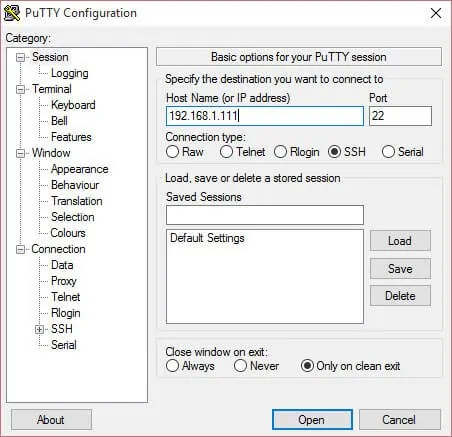
probably say PuTTY is the best SSH client. I have shown you how to install PuTTY on Windows. Connecting to a remote SSH server is as simple as just typing in the IP address or domain and port and hitting open. SSH Access with PuTTY for WindowsYou may be asked for username and password to connect to the remote SSH server. Alternatively, you can use PuTTY with SSH keys to connect without passwords. You can even create Windows shortcut to PuTTY sessions
to open an SSH session with one click. Now that we have seen what is
PuTTY let us look at some best SSH clients that can be great PuTTY
alternatives.
PuTTY Like Programs for Windows
The 3 SSH clients listed bellow are based on PuTTY and they look like
PuTTY but provide added features to take PuTTY to next level. If you
want to stick with PuTTY environment, then one of these SSH clients for
Windows is worth a look.
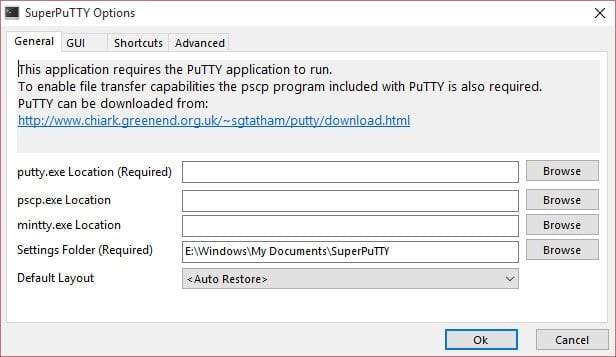
SuperPutty is a Windows PuTTY alternative that aims to make a better
version of PuTTY. However, it requires PuTTY to run. In other words,
SuperPuTTY makes existing PuTTY install better. It allows tabbed
sessions as well as SCP file transfers between remote and local system. SuperPuTTY requires PuTTY to runSuperPuTTY’s features include:
Docking user interface allows personalized workspace and managing multiple PuTTY sessions easy
Export/Import session configuration
Upload files securely using the scp or sftp protocols
Layouts allow for customizing session views
Supports PuTTY session configurations including Private Keys
PuTTY Tray, as the name suggests, is based on PuTTY. It adds cosmetic
changes and extends PuTTY further using addons that make it better than
PuTTY. But in many ways it looks very much like PuTTY. Some of its
features include:
Minimizing to the system tray (on CTRL + minimize, always or directly on startup)
Icons are customisable
Blinks tray icon when a bell signal is received
Configurable window transparency
URL hyperlinking
Portability: optionally stores session configuration in files (for example: on a USB drive) like portaPuTTY
Easy access to the ‘always on top’ setting (in the system menu)
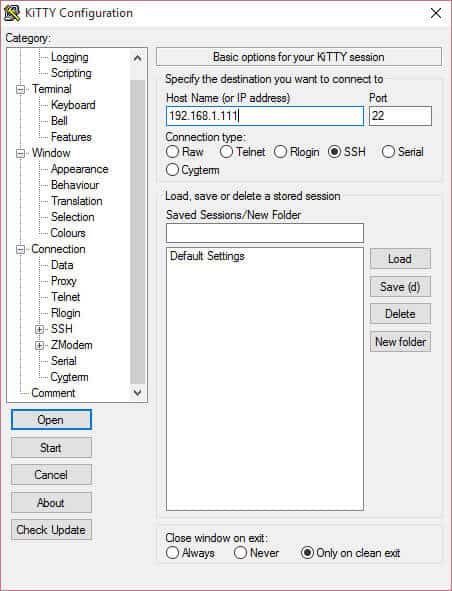
KiTTY is a fork of PuTTY designed to function as a Windows SSH
Client. KiTTY has all features from PuTTY and adds many more features. KiTTY looks very similar to PuTTYWhile the entire list of features can be found on KiTTY’s website, some key added features are listed below:
Sessions filter
Portability
Shortcuts for pre-defined command
Automatic password
Running a locally saved script on a remote session
An icon for each session
Send to tray
Quick start of a duplicate session
pscp.exe and WinSCP integration
KiTTY is another great alternative to PuTTY.
Alternatives to PuTTY
PuTTY is great and is one the most common free Windows
SSH clients. That said, PuTTY looks pretty pedestrian and one of the
biggest missing features is the inability to open sessions in tabs. Some
of the PuTTY alternatives listed below not only allow tabs but also
combine other protocols such as FTP, SFTP, and more into one single
tool, which can be handy for a home server user or server administrator.
So let us have a brief look at some best Windows SSH client options.
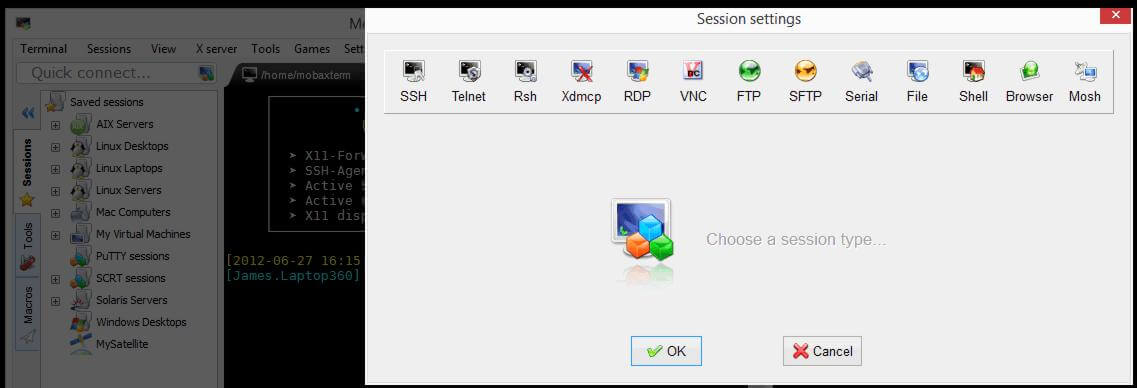
MobaXterm is a single Windows application that provides a ton of
functions for programmers, webmasters, IT administrators, and anybody is
looking to manage system remotely. MobaXterm Home – The Best Windows SSH ClientSome of its features include:
Support for several protocols (SSH, X11, RDP, VNC, FTP, MOSH, …)
Brings Unix commands to Windows (bash, ls, cat, sed, grep, awk, rsync, …)
Embedded X Server and X11-Forwarding
Tabbed terminal for SSH
GUI File / Text editor
Portable and light
It can be extended further with plugins. The thing I like about
MobaXterm is that no intrusive ads / prompts to upgrade are displayed
even on the free Home edition. The paid Professional version brings more
features. [Read:How to SSH into Raspberry Pi for remote administration?]
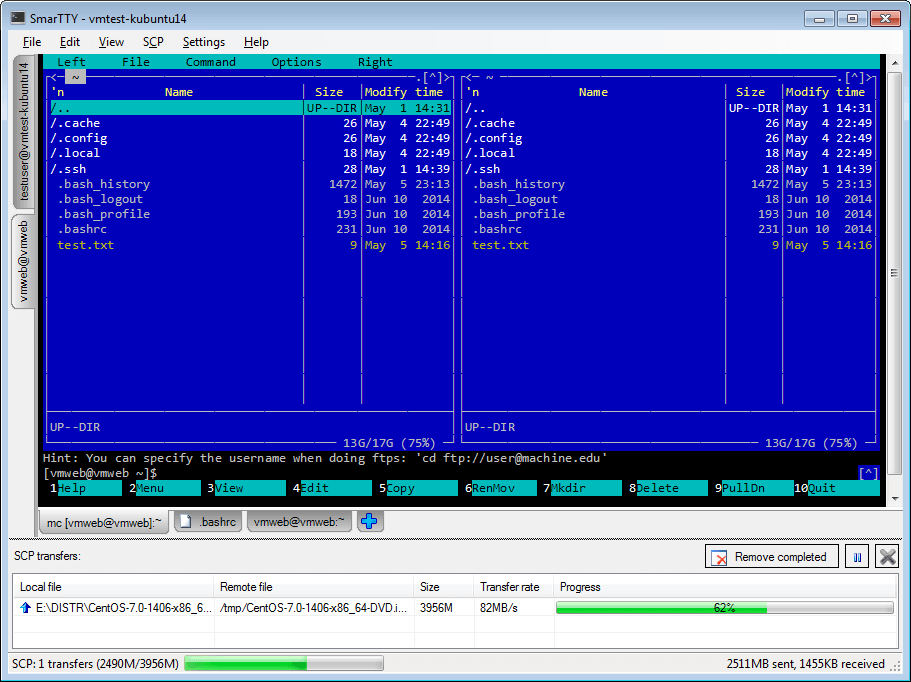
SmarTTY is also one of the best SSH clients for Windows. It is my
second favorite after MobaXterm and a solid PuTTY replacement. And best
of all, it is free to use. SmarTTY – Free Windows SSH ClientSmarTTY combines several awesome features into one application:
One SSH session – multiple tabs
Transfer files and whole directories
Edit files in-place
Built-in hex terminal for COM ports
Out-of-the-box public-key auth
Run graphical applications seamlessly with built-in Xming
SmartTTY is regularly updated and stands out among programs like PuTTY.
Dameware SSH client is a free Windows SSH terminal emulator that
allows multiple telnet and SSH connects from one easy-to-use console. Dameware SSH Client for WindowsDameware SSH client’s features include:
Manage multiple sessions from one console with a tabbed interface
Save favorite sessions within the Windows file system
Access multiple sets of saved credentials for easy log-in to different devices
Connect to computers and devices using telnet, SSH1, and SSH2 protocols
Dameware SSH client does not stand out from some of the other
best SSH clients but it is comparable to them. On the free version it
does show an ad prompting you to upgrade to their paid service. If you
like the interface then definitely do give it a try.
mRemoteNG, a fork of mRemote, is an open source, tabbed remote
connections manager that combines multiple protocols into one
application. Like some of the other best Windows SSH clients listed
above, it also allows tabbed interface. mRemoteNG SSH Shell for WindowsmRemoteNG supports the following protocols:
RDP (Remote Desktop/Terminal Server)
VNC (Virtual Network Computing)
ICA (Citrix Independent Computing Architecture)
SSH (Secure Shell)
Telnet (TELecommunication NETwork)
HTTP/HTTPS (Hypertext Transfer Protocol)
rlogin
Raw Socket Connections
It is completely free to use and worth a try, especially if you prefer open-source applications.
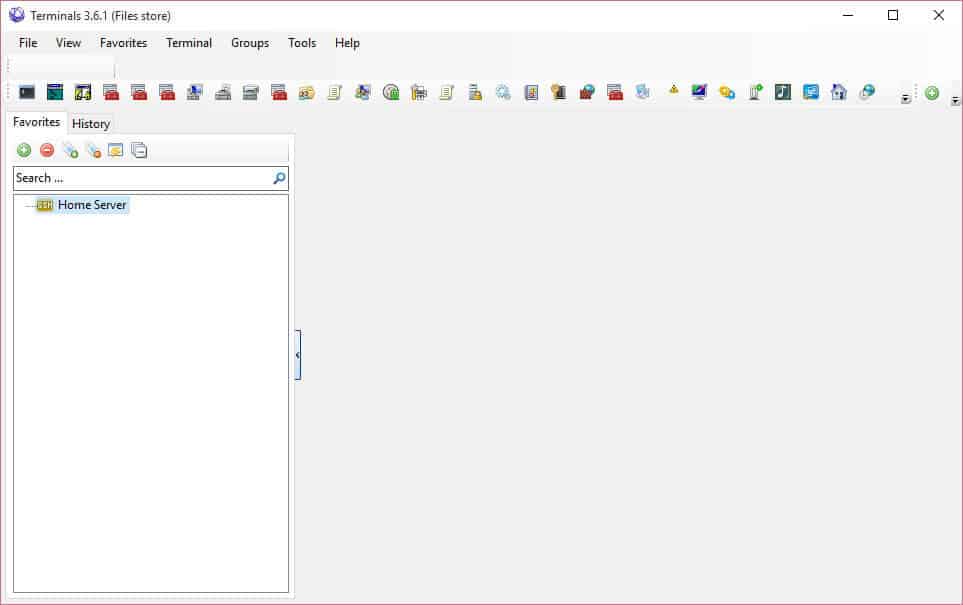
Terminals is a secure, multi tab terminal services/remote desktop
client. It is offers several features and competes with some of the paid
or closed source SSH Windows clients listed above. Terminals SSH Client
Multi tab interface
Open terminal in full screen, switch between full screen mode
Favorites
Networking tools: Ping, Tracert, DNS tools, Wake on lan, Port scanner, Shares, etc.
Connections history
Screenshot capture
Open custom application from Terminals window
Multi-protocol: Windows remote desktop (RDP), VNC, VMRC, SSH, Telnet, and more
Terminals definitely has a lot of tools and features compared to
some of the other SSH client software listed above. The full list of
features and screenshots are available on Terminal’s website.
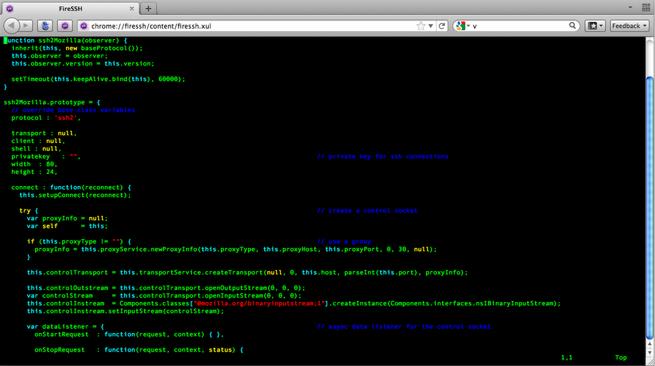
10. FireSSH Addon
If for whatever reason you prefer not to use a separate software for SSH remote administration, then FireSSH addon for Firefox and Chrome
can be a great alternative. A great example is when you are on a system
that you do not have administrative privileges. While portable SSH
clients could work on such Windows PCs, FireSSH extension is platform
independent. FireSSH for Firefox and Chrome
FireSSH is an extension written in Javascript and allows
you to connect to remote SSH server through your browser. If your
browser allows tabbed browsing then you can open SSH sessions in
separate tabs.
Concluding Remarks
The above list of best SSH software for Windows is not by any means
exhaustive. There are other good SSH clients such as XShell (paid),
Bitvise SSH Client (free for individual use), and TeraTerm (Free) that
may be comparable. Also, please remember that the above list is focussed
towards home server or media center users for basic administrative
tasks and not business environments. Some of the Android media players
can even be administered using SSH with an SSH server app installed. As
mentioned in the article, I have used and like PuTTY but I have moved
on to MobaXterm and have been very happy. For many, this will be a
matter of personal preference. But I hope that this list of best SSH
clients summarizes a few options to choose from.
SSH client is a program that allows establishing a secure and authenticated SSH connections to SSH servers.
Windows SSH Client Options
There are several other clients and servers available. These are generally not supported for SSH key management and may not have commercial support or 24x7 support available. Tectia SSH is a commercially supported SSH client for enterprises, with 24x7 support. More information on Tectia SSH. PuTTY is a free client for the SSH and telnet protocols. More information on PuTTY. WinSCP
is a free open source Windows client for file transfers. In addition to
file transfer (with FTP, SFTP, or SCP protocols) WinSCP offers a basic
file manager functionality and supports scripting. More information FileZilla is a free file transfer client. More information on FileZilla. Chrome SSH extension
- The Google Chrome browser can be turned into an SSH client with an
extension available in the Chrome Web Store. The Chrome SSH (beta)
offers a basic SSH protocol capability. Bitvise
is a European software company that priovides an SSH client also for
Windows. A copy of Bitvise SSH Client can be downloaded from: https://www.bitvise.com/ssh-client-download. VanDyke Software
offers their commercial client software for a free, time-limited
evaluation. VanDyke SecureCRT and SecureFX clients supports telnet,
Secure Shell (SSH), and SFTP. An evaluation copy can be downloaded from https://vandyke.com/download/index.html.
You can use PuTTY to generate your SmartMachine SSH key. PuTTY is a free open-source terminal emulator that functions much like the Terminal application in Mac OS X in a Windows environment. If you prefer a command line approach to SSH, you can use Cygwin to emulate a Linux-like environment on your Windows machine. This topic shows you how to manually generate and upload an SSH key when working with PuTTY in the Windows environment.
PuTTY is an SSH client for Windows that you will use to generate your SSH keys. You can download PuTTY from www.chiark.greenend.org.uk. When you install the PuTTY client, you also install the PuTTYgen utility. PuTTYgen is what you will use to generate your SSH key for a Windows VM.
This page gives you basic information about using PuTTY and PuTTYgen to log in to your provisioned machine. For more information on PuTTY, see the PuTTY documentation
To generate an SSH key with PuTTYgen, follow these steps:
Open the PuTTYgen program.
For Type of key to generate, select SSH-2 RSA.
Click the Generate button.
Move your mouse in the area below the progress bar. When the progress bar is full, PuTTYgen generates your key pair.
Type a passphrase in the Key passphrase field. Type the same passphrase in the Confirm passphrase field. You can use a key without a passphrase, but this is not recommended.
Click the Save private key button to save the private key. You must save the private key. You will need it to connect to your machine.
Right-click in the text field labeled Public key for pasting into OpenSSH authorized_keys file and choose Select All.
Right-click again in the same text field and choose Copy.
Now you need to upload the copied SSH key to your Cloud Management portal.
After you copy the SSH key to the clipboard, return to the Cloud Management portal.
In the SSH Key field, paste your SSH key.
In the Name field, provide a name for the key. Providing a key name is optional but is a good practice for ease of management.
Click the Add this key button. See below.
PuTTY and OpenSSH use different formats of public SSH keys. If the text you pasted in the SSH Key starts with —— BEGIN SSH2 PUBLIC KEY, it is in the wrong format. Be sure to follow the instructions carefully. Your key should start with ssh-rsa AAAA…. Once you upload your SSH key to the portal, you can connect to your virtual machine from Windows through a PuTTY session.
SSH keys provide a more secure way of logging into a virtual private server with SSH than using a password alone. While a password can eventually be cracked with a brute force attack, SSH keys are nearly impossible to decipher by brute force alone. Generating a key pair provides you with two long string of characters: a public and a private key. You can place the public key on any server, and then unlock it by connecting to it with a client that already has the private key. When the two match up, the system unlocks without the need for a password. You can increase security even more by protecting the private key with a passphrase.
Step One—Create the RSA Key Pair
The first step is to create the key pair on the client machine (there is a good chance that this will just be your computer):
ssh-keygen -t rsa
Step Two—Store the Keys and Passphrase
Once you have entered the Gen Key command, you will get a few more questions:
Enter file in which to save the key (/home/demo/.ssh/id_rsa):
You can press enter here, saving the file to the user home (in this case, my example user is called demo).
Enter passphrase (empty for no passphrase):
It's up to you whether you want to use a passphrase. Entering a passphrase does have its benefits: the security of a key, no matter how encrypted, still depends on the fact that it is not visible to anyone else. Should a passphrase-protected private key fall into an unauthorized users possession, they will be unable to log in to its associated accounts until they figure out the passphrase, buying the hacked user some extra time. The only downside, of course, to having a passphrase, is then having to type it in each time you use the Key Pair. The entire key generation process looks like this:
ssh-keygen -t rsa
Generating public/private rsa key pair.
Enter file in which to save the key (/home/demo/.ssh/id_rsa):
Enter passphrase (empty for no passphrase):
Enter same passphrase again:
Your identification has been saved in /home/demo/.ssh/id_rsa.
Your public key has been saved in /home/demo/.ssh/id_rsa.pub.
The key fingerprint is:
4a:dd:0a:c6:35:4e:3f:ed:27:38:8c:74:44:4d:93:67 demo@a
The key's randomart image is:
+--[ RSA 2048]----+
|          .oo.   |
|         .  o.E  |
|        + .  o   |
|     . = = .     |
|      = S = .    |
|     o + = +     |
|      . o + o .  |
|           . o   |
|                 |
+-----------------+
The public key is now located in /home/demo/.ssh/id_rsa.pub The private key (identification) is now located in /home/demo/.ssh/id_rsa
Step Three—Copy the Public Key
Once the key pair is generated, it's time to place the public key on the virtual server that we want to use. You can copy the public key into the new machine's authorized_keys file with the ssh-copy-id command. Make sure to replace the example username and IP address below.
ssh-copy-id user@123.45.56.78
Alternatively, you can paste in the keys using SSH:
No matter which command you chose, you should see something like:
The authenticity of host '12.34.56.78 (12.34.56.78)' can't be established.
RSA key fingerprint is b1:2d:33:67:ce:35:4d:5f:f3:a8:cd:c0:c4:48:86:12.
Are you sure you want to continue connecting (yes/no)? yes
Warning: Permanently added '12.34.56.78' (RSA) to the list of known hosts.
user@12.34.56.78's password:
Now try logging into the machine, with "ssh 'user@12.34.56.78'", and check in:

  ~/.ssh/authorized_keys

to make sure we haven't added extra keys that you weren't expecting.
Now you can go ahead and log into user@12.34.56.78 and you will not be prompted for a password. However, if you set a passphrase, you will be asked to enter the passphrase at that time (and whenever else you log in in the future).
Optional Step Four—Disable the Password for Root Login
Once you have copied your SSH keys unto your server and ensured that you can log in with the SSH keys alone, you can go ahead and restrict the root login to only be permitted via SSH keys. In order to do this, open up the SSH config file:
sudo nano /etc/ssh/sshd_config
Within that file, find the line that includes PermitRootLogin and modify it to ensure that users can only connect with their SSH key:
PermitRootLogin without-password
Put the changes into effect:
reload ssh
Digital Ocean Addendum
The Digital Ocean control panel allows you to add public keys to your new droplets when they're created. You can generate the SSH Key in a convenient location, such as the computer, and then upload the public key to the SSH key section. Then, when you create a new VPS, you can choose to include that public key on the server. No root password will be emailed to you and you can log in to your new virtual private server from your chosen client. If you created a passphrase, you will be prompted to enter that upon login.







 Providing a key name is optional but is a good practice for ease of management.